

How to use Hash Marks
Short, step-by-step help for everything in the app. Tap a topic to open it.
Your first game in 5 steps
New to Hash Marks? This is all you need for game day.
- Add your players. Go to Settings and tap + Add player.
- Create your team. In Settings, tap + Add team, tick your players and add their jersey numbers.
- Add a game. On Schedule, tap + Add game, or Import your league calendar.
- Tap Track at puck drop. Tap Start shift when your player steps on the ice and End shift when they come off. Use Shot, Goal and Assist as they happen.
- End the game. Tap ⋯ then End game. The stats are ready on the Dashboard.
Logging in
Creating an account
For now you need a sign-up code from the person who shared Hash Marks with you.
- Go to hashmarkshockey.com, tap Log in, then Create an account.
- Type your sign-up code, your email, and a password of at least 6 characters (twice). Add your name and city if you like (both optional).
- Tap Create account.
- Open the email “Confirm your Hash Marks account” and tap Confirm my email. Hash Marks opens, logged in.
Good to know: “That code isn't valid” means the code was typed wrong, has ended or has been used up: ask the person who shared it. No email after a few minutes? Check your junk folder, or tap Send the link again. The link lasts 24 hours; after that, log in and you'll be offered a new one.
Accepting your invite
Got an invite email instead? Your account is already waiting: no code needed.
- Open the email “You're invited to Hash Marks” and tap Set your password. Can't find it? Check your junk folder.
- Add your name and city if you like (both optional).
- Choose a password of at least 6 characters, type it again, and tap Save and continue.
Tip: A short phrase like “blue skates at six” is easy to remember and hard to guess.
Used Create an account instead? That's fine: tap the link in the “Confirm your Hash Marks account” email, and Hash Marks asks you to choose your password there. The link in the invite email stops working once the newer email is sent.
Logging in
- Go to hashmarkshockey.com and tap Log in.
- Enter your email and password, then tap Log in.
You stay logged in on that phone or computer until you log out. If there's no signal at the rink, the app still opens.
Forgot your password
- On the login screen, tap Forgot password?
- Enter your email and tap Send reset link.
- Open the email “Reset your password” and tap Choose a new password.
- Type your new password twice and tap Save password.
Good to know: Each link works once. If it says it has expired, just ask for a new one. No email after a few minutes? Check your junk folder.
Add Hash Marks to your Home Screen
Open it with one tap, like an app. There's nothing to download from an app store.
iPhone or iPad:
- Open hashmarkshockey.com/app in Safari.
- Tap the Share button (at the bottom of the screen, at the top on iPad).
- Scroll down, tap Add to Home Screen, then Add.
Android:
- Open hashmarkshockey.com/app in Chrome.
- Tap the menu ⋮ at the top right.
- Tap Add to Home screen, then Add.
The same steps are in the app under Settings → This device → Add to Home Screen.
Setting up
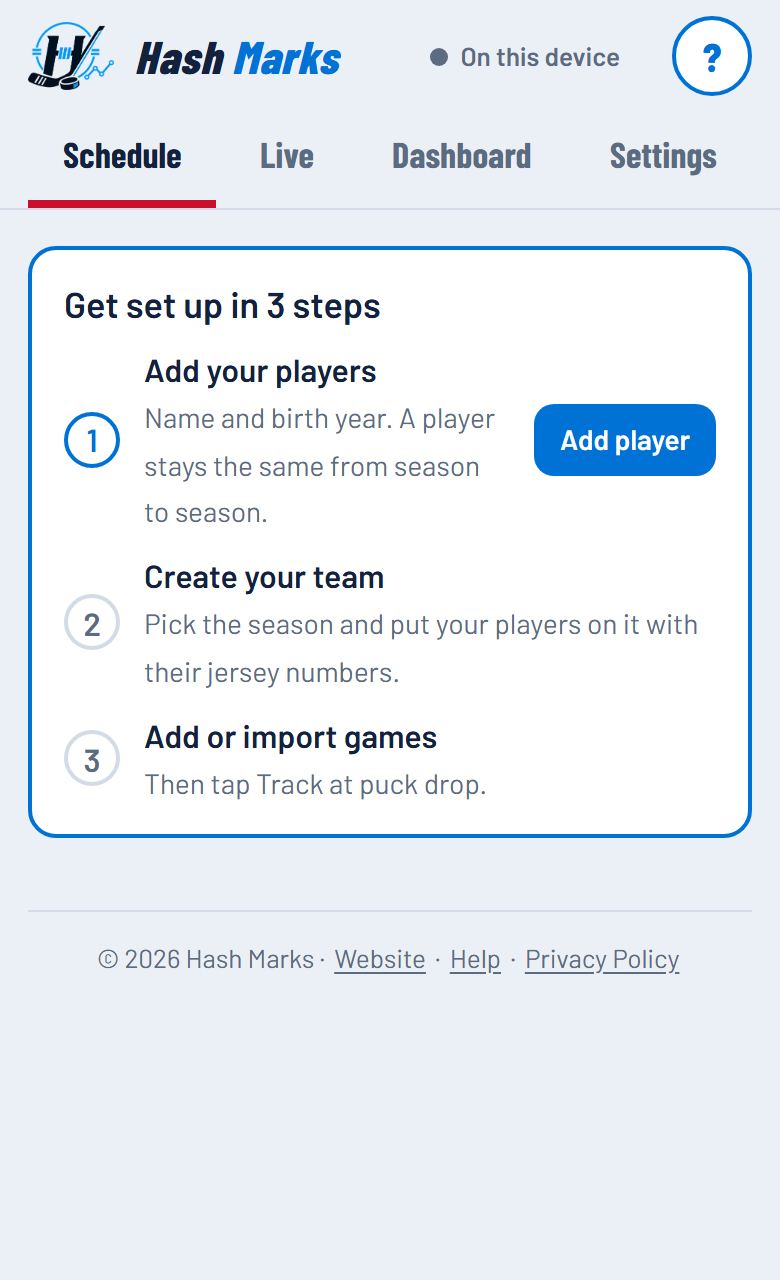
Do these once. The app walks you through them in order: players, then a team, then games.
Adding players
- Go to Settings and tap + Add player.
- Enter the player's name and, if you like, their birth year.
- Tap Add player.
A player stays the same from season to season, so you add them only once. Jersey numbers and positions go on the team, because they can change each season.
To change a name, tap Edit next to them. To remove a player, tap Edit, then ⋯ at the top and Remove player. Teams work the same way: Edit, then ⋯ for Delete. For a game, tap its card on the Schedule, then ⋯ for Delete or Reset game.
Adding a team
- In Settings, tap + Add team.
- Enter the team name and pick the season and division. The level (like AA) is optional.
- Check the period lengths (20 minutes and 5 for OT unless your league is different).
- Under Your players on this team, tick each player and add their jersey number and position. Every ticked player needs a position: pick Goalie for a goalie so their games are tracked as goalie games. If you change a position to or from Goalie later, their upcoming games for that team switch too.
- Tap Add team.
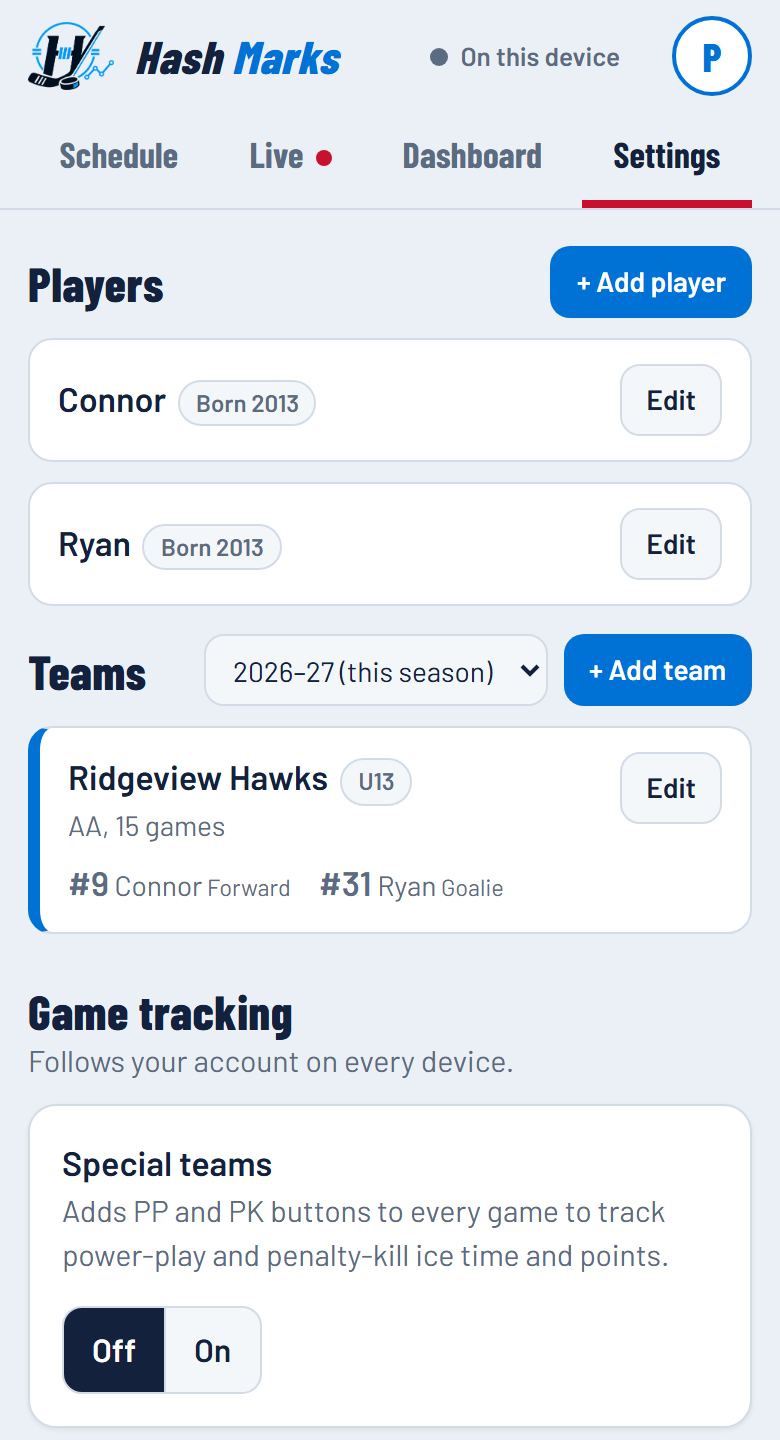
New season? Add a new team for that season and tick the same players. Last season's stats stay where they are.
Adding a game
- On Schedule, tap + Add game.
- Pick the team, date and start time, then enter the opponent, home or away, game type and arena.
- Under Players to track, tick who you're tracking. Set each one to Skater or Goalie for this game.
- Tap Add game.
To change anything later, tap the game's card on the Schedule.
Deleting a game: on a phone or tablet, swipe an upcoming game's card to the left and tap Delete. Games with stats can't be swiped away: tap the card, then ⋯ → Delete game. Either way, you're asked first.
Importing your league schedule
Add the whole season at once from your league or team app's calendar file (.ics), or from a spreadsheet saved as CSV.
- On Schedule, tap Import, then Choose file.
- Check the preview. Make sure Add to team and Your team in this calendar are right. If the app can't tell which team the games are for, it asks you to choose before you can import.
- Untick any games you don't want, then tap the Import button at the bottom.
On iPhone: save the calendar file to the Files app first, then choose it here.
Importing the same calendar again later is safe. Games already on your schedule are never added twice. Changed times or opponents show as Update, and cancelled games can be removed. Games you've already tracked are never changed.
Got a calendar for the whole league or division? Pick your team in Your team in this calendar and only its games are listed and imported. The app tells you how many other games were left out.
You can import up to 100 new games at a time. For a bigger file, untick some and import the rest afterwards.
Game day
Starting a game
- On Schedule, your next game is at the top under Next up. Tap Track at puck drop. (Tap Track on a game that's on a later day and the app checks first, in case you tapped the wrong one.)
- The Live screen opens with the scoreboard and a row for each player you're tracking.
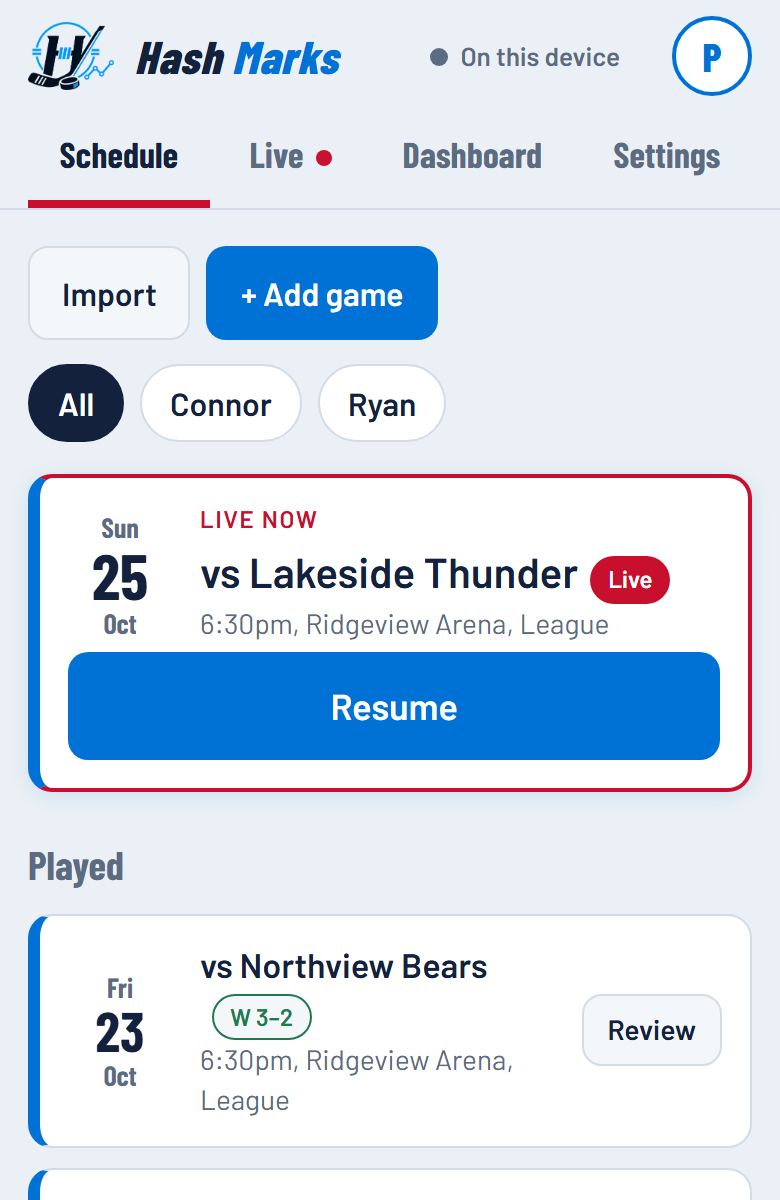
Left the Live screen? Tap the Live tab (it has a red dot while a game is on) or Resume on the game.
Shifts and stoppages
- When your player steps on the ice, tap Start shift. The timer turns green.
- When they come off, tap End shift. The shift is saved.
- At a whistle, tap Stoppage at the bottom. All shift clocks pause and turn red.
- At the faceoff, tap Resume play.
- A goal pauses the clocks for you. When you tap Goal, Assist, Goal against or the scoreboard +, play stops, so the time spent celebrating and filling in the details isn’t counted. Tap Resume play at the faceoff. Cancelling or undoing the goal takes the pause back.
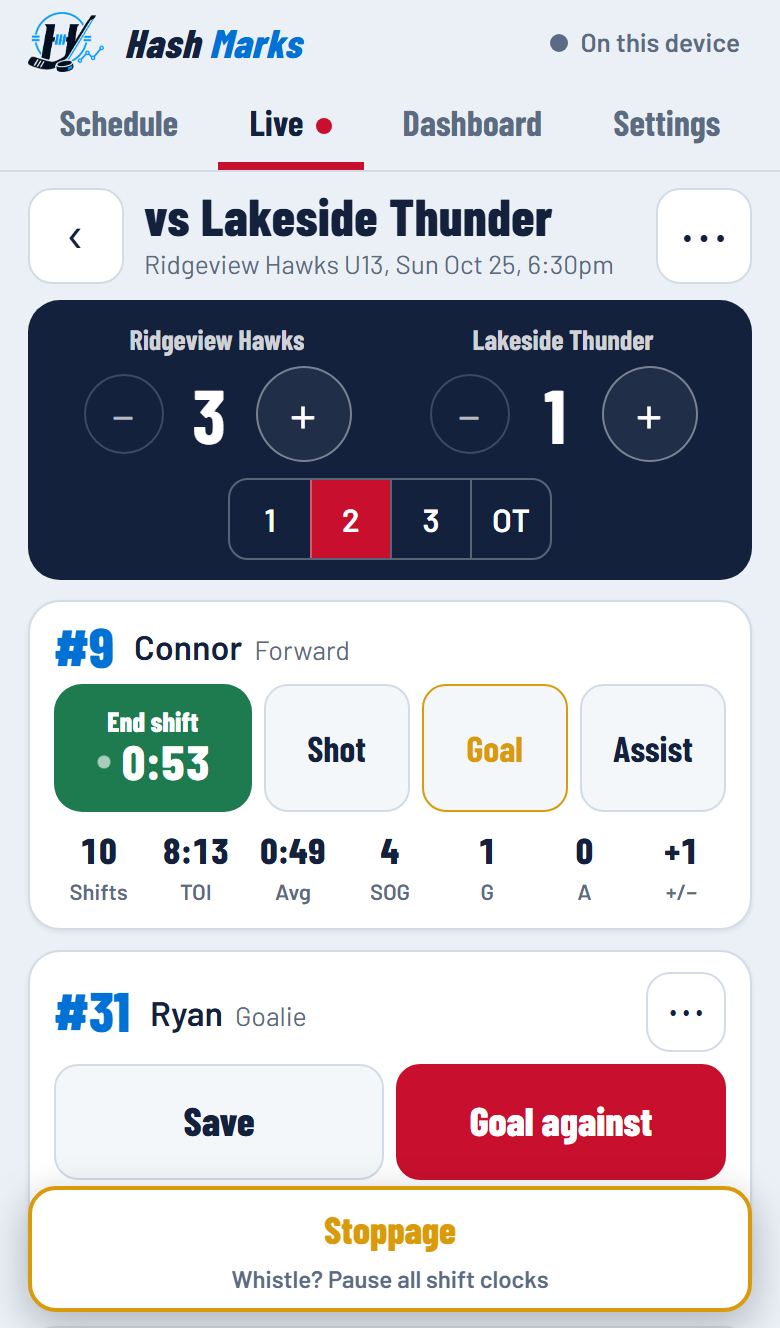
Changing period: tap 2, 3 or OT on the scoreboard. Any running shifts end.
Gold timer, “Still on?” A shift has run 3 minutes. If your player is already on the bench, tap End shift. If you forget, the app ends the shift at the full period length and flags it in the game log.
Shift time only counts while play is on, and the timers keep going if your phone locks or loses signal.
Shots, goals and assists
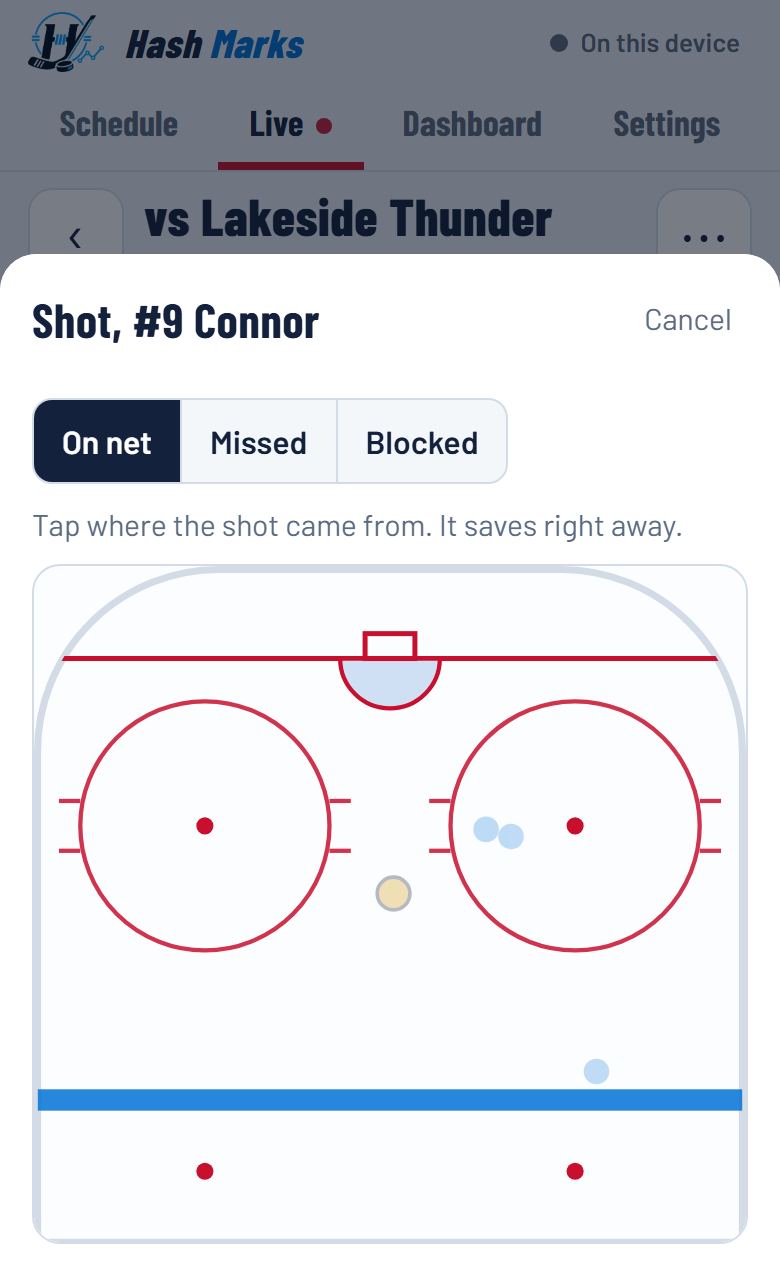
Shot
- Tap Shot on the player's row.
- Pick On net, Missed or Blocked.
- Tap the rink where the shot came from. It saves right away.
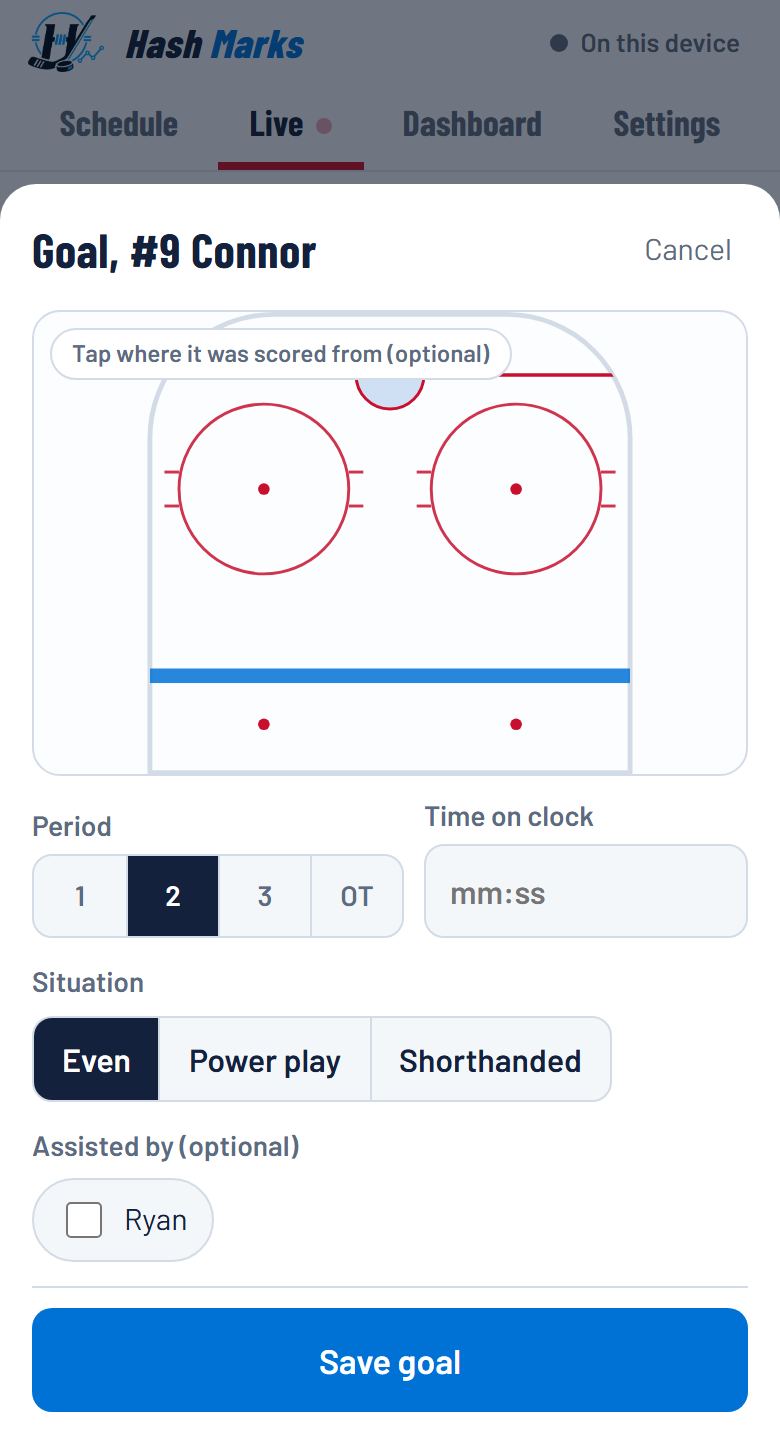
Goal
- Tap Goal on the scorer's row.
- Tap where it was scored from (optional), and check the period and time.
- Pick the situation: Even, Power play or Shorthanded.
- Tick anyone you're tracking who assisted (up to 2, the most a goal can have), then tap Save goal.
Assist (your player set it up, someone else scored): tap Assist, choose Primary or Secondary, and tap Save assist.
Enter each goal once. Saving a goal or assist adds 1 to the score by itself, and a goal also counts as a shot on net. Don't add a separate shot or tap the scoreboard + as well.
The score and goals by other players
For goals scored by players you're not tracking, use the scoreboard:
- Tap + under your team's name for your team's goal, or under the opponent's name for theirs.
- If one of your players was on the ice, a message asks whether it was a PP (power play) or SH (shorthanded) goal. Ignore it for an even-strength goal.
- Tap − to take away a goal that was added by mistake.
How plus/minus works
Plus/minus shows whether goals go in for or against while your player is on the ice. Hash Marks follows the official rules, and works it out for you from who has a shift running.
| Your team scores at even strength while your player is on the ice | +1 |
| Your team scores shorthanded while your player is on the ice | +1 |
| The opponent scores at even strength or shorthanded while your player is on the ice | −1 |
| Any power-play goal, either team | 0 |
| Your player is on the bench | 0 |
The scorer and the players credited with assists always count as on the ice. Goalies don't get plus/minus.
For an accurate number: keep shifts up to date, and mark power-play goals as Power play.
Power plays and penalty kills
Optional. Track power-play and penalty-kill ice time and points.
- Turn it on once: Settings → Game tracking → Special teams → On.
- In a game, tap PP when your team goes on the power play, or PK when it's killing a penalty. A 2:00 timer starts. It only runs during play.
- Tap the timer to make it a 4 or 5 minute penalty, add another penalty (5-on-3), switch sides, or end it early.
A minor ends by itself when the team on the power play scores. While the timer runs, goals are marked as power-play or shorthanded for you.
Tracking a goalie
- When you add or edit the game, set the player to Goalie. A goalie on the team is set this way automatically.
- For each save, tap Save, then tap where the shot came from.
- For a goal against, tap Goal against, pick the situation, and tick Empty net if the goalie was pulled. The opponent's score goes up by itself. If you saw where it went in, tap the spot on the net: Glove high, Blocker high, Glove low, Blocker low or Five hole (it's optional, and you can add or change it later with Edit in the game log). The Dashboard shows a net with how many goals went in each spot.
Goalies have no shift timer. If another goalie played part of the game, tap ⋯ on the goalie's row and untick the periods under In net for. That menu also has Record an assist.
Fixing a mistake
- Just tapped the wrong thing? Tap Undo in the message at the bottom. It shows for a few seconds.
- Found it later? Scroll down the Live screen to the Game log. Every entry has Edit and Delete. You can change a shift's length, a shot's result, a goal's time or situation, who was on the ice, and more.
- Forgot an assist? In the game log, tap Edit on the goal and tick Assisted by. The score doesn't change.
- Game already ended? See Fixing a finished game below.
“Auto-ended: check length” in the game log means a shift was left running and the app ended it at the full period length. Tap Edit and enter the real length.
Fixing a finished game
Finished games are locked so nothing changes by accident. To fix one:
- Open the game: on Schedule, tap Review.
- Tap Fix this game under the score. A gold Fixing this game banner shows at the top.
- Make your changes:
- Plus/minus is off: in the game log, tap Edit on the goal and tick or untick who was on the ice.
- Missed a goal or assist: tap Goal or Assist on the player, then Edit the new entry in the game log to set the right period and time. The scorer and anyone credited with an assist count as on the ice.
- Missed an assist on a goal that's already there: Edit the goal and tick Assisted by. The score doesn't change.
- Tap Done in the banner. The game is locked again, and the Dashboard, report and Game Card update.
Ending the game
- Tap ⋯ at the top right of the Live screen, then End game, then End game again to confirm.
- If the game ended tied, choose who won the shootout, or No shootout, it's a tie.
- If nothing was recorded for a player, the app asks whether they missed the game. Tap Remove so it doesn't count as a game played, or Keep.
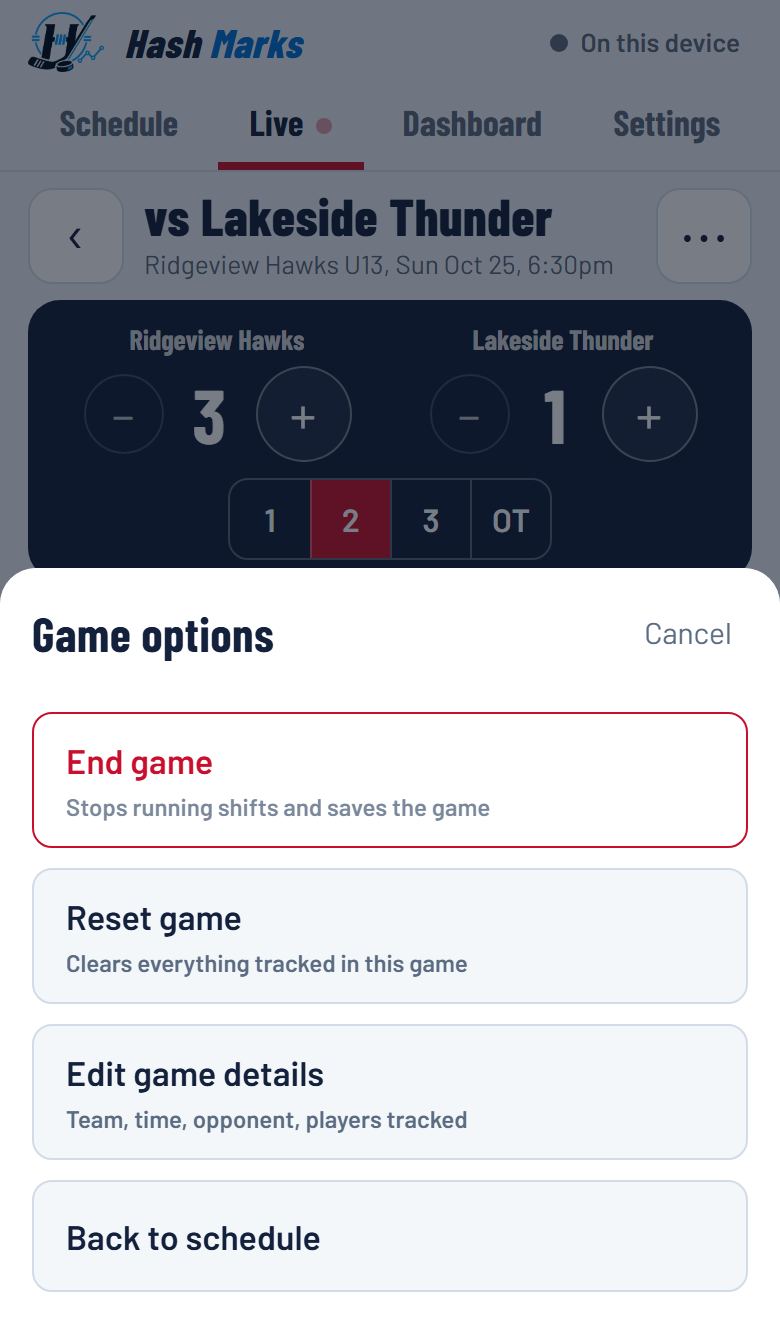
Running shifts are saved when you end the game. The game moves to Played and its stats appear on the Dashboard.
Reset game clears everything tracked in a game and puts it back in your upcoming games. Use it only to start over. If you change your mind straight away, tap Undo.
Game notes
On the Live screen, the Notes box is below the players. Jot down anything worth remembering: line changes, injuries, coach feedback. It saves as you type, and the count under the box shows how many of the 1,000 characters are left.
Notes show on the game's schedule card and in the PDF report. They're never on the Game Card you share.
After the game
The Dashboard
- Tap the Dashboard tab.
- Pick the player at the top (for example #9 Connor).
- Choose Last game, Last 5, Last 10 or Season.
- Tap More filters to pick another season, team or game type.
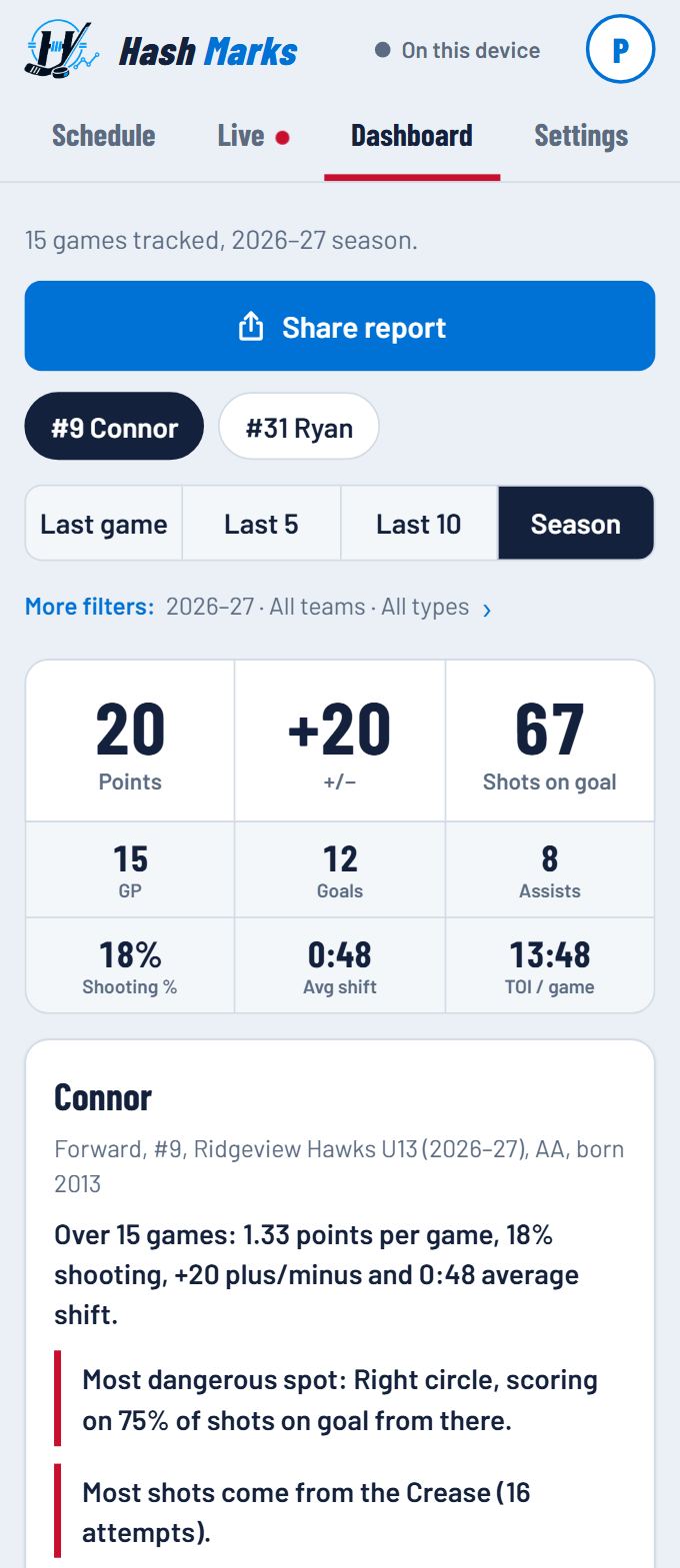
You'll see the key numbers, a shot map, shots by zone and by period, weekday vs weekend, home vs away, game by game and season over season. Goalies get their own version with saves, save % by zone and more.
Sharing a Game Card
A one-image summary of a single game, made for texting to family or posting.
- On the Dashboard, choose Last game and tap Share game card. For an older game, tap Review on the Schedule, then Game card next to the player's name (it's also under ⋯).
- Tap Share image to send it, or Download PDF for a white version on a letter page that prints cleanly. On a phone or tablet, both open your share options: send it in a message or email, or save it to Files.
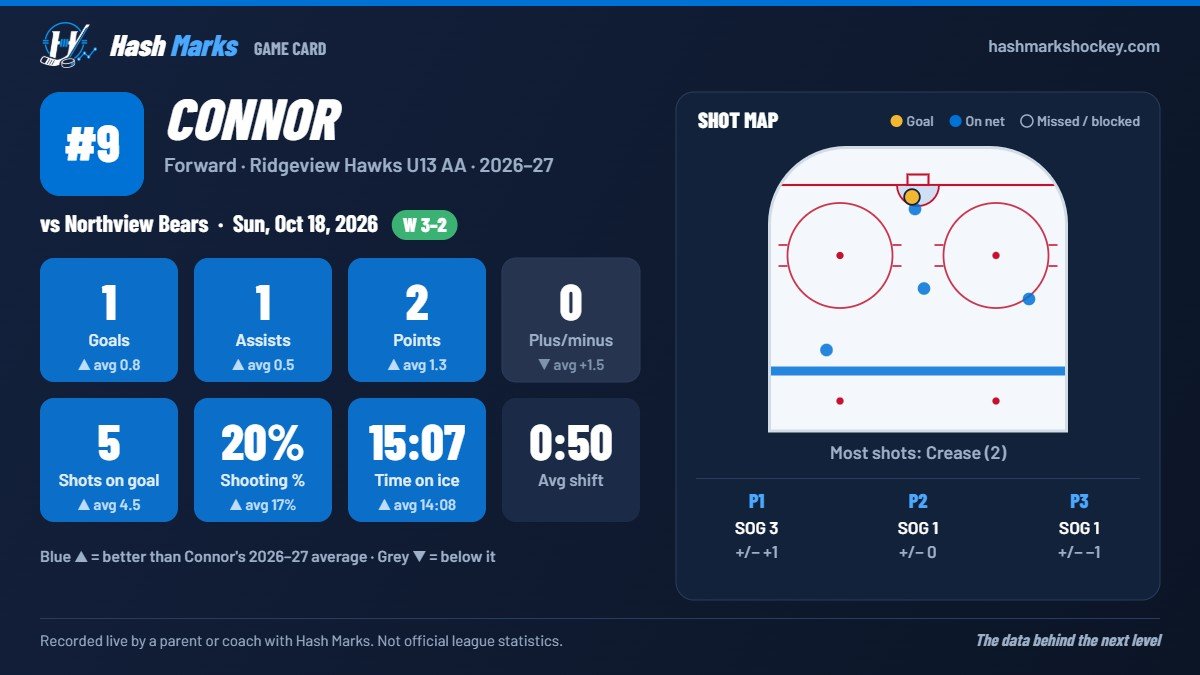
The ▲ and ▼ arrows compare the game with the player's own season average, never with other players. The card is made on your phone, and nothing is uploaded until you choose where to send it.
The PDF Player Development Report
- On the Dashboard, pick the player and the games (for example Season).
- Tap Share report. On a phone or tablet your share options open, so you can send just the PDF in a message or email, or save it to Files. On a computer, it downloads.
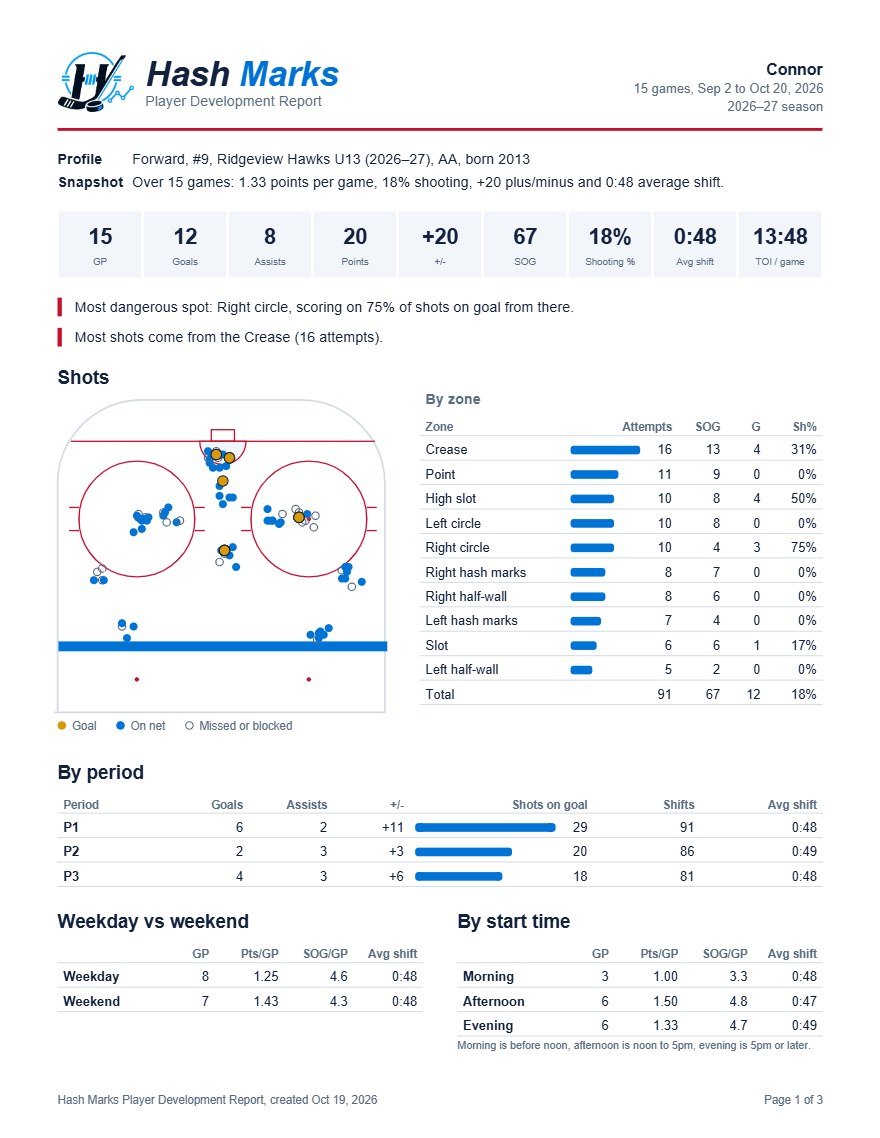
The report has the key numbers, insights, shot map, breakdowns, the game log and your game notes, plus a page explaining each stat. It's ideal for tryouts, coaches and end-of-season reviews.
Last 5 and Last 10 reports show recent form: a table compares those games with the whole season, with a blue arrow where your player is doing better. Only finished games are counted, so a game you're still tracking isn't included until you end it.
Your account
Your profile and password
- Tap the round button with your initial at the top right. It's hidden during a live game.
- Tap Your profile to change your name or city, then Save changes.
- To change your password, tap Change password on the same screen. You'll need your current one. Don't remember it? Tap Email me a reset link.
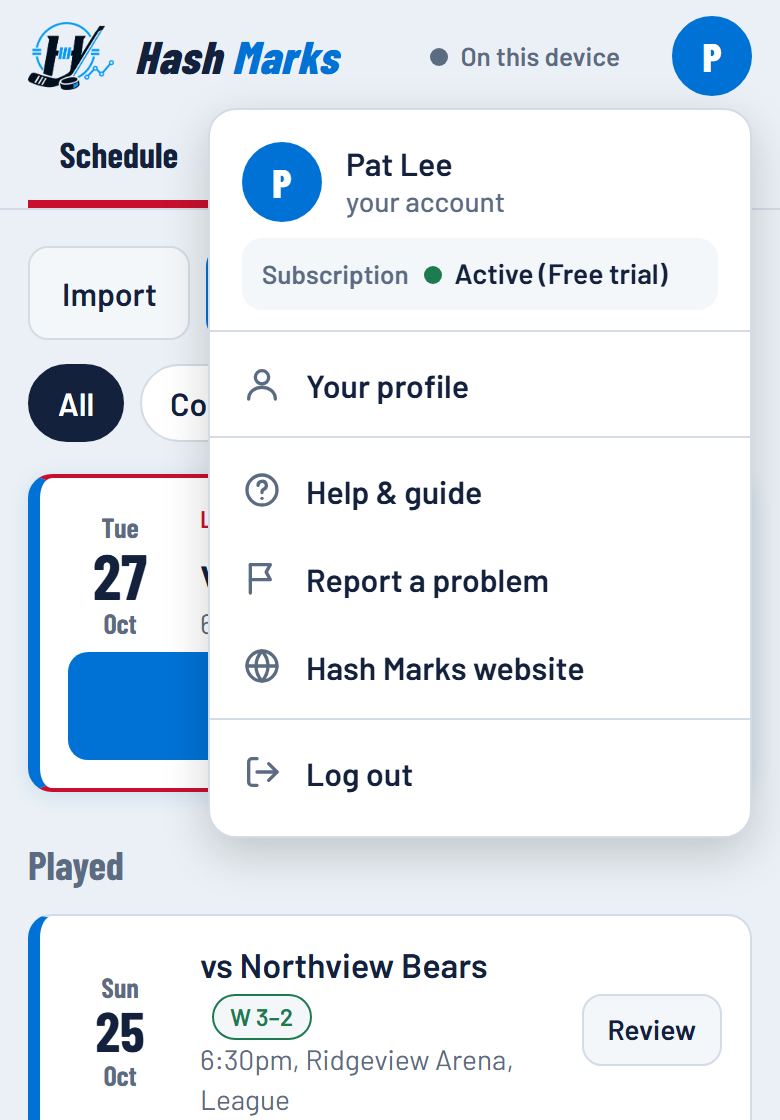
To change the email on your account, contact support (below).
Using more than one phone, and no signal
Log in with the same email on each phone, tablet or computer. Your players, teams and games sync between them.
The first time you log in on a new device, you'll see Loading your data while your account comes down: players and teams, then games, then game stats. Wait for it to finish before adding anything, so nothing is added twice.
Everything saves on the device first, so tracking works in arenas with no signal. A coloured dot at the top of the app shows Synced (green), Syncing (blue), Offline (gold) or Sync problem (red). Tap it for details. Changes upload by themselves once you're back online.
Backup and restore
Your data is already saved to your account. For an extra copy:
- Go to Settings → Your data.
- Tap Back up to save a file of all players, teams, games and stats.
Careful: Restore replaces everything currently in the app with the backup file.
Logging out (and borrowed phones)
- Tap the round button at the top right, then Log out.
- Confirm with Log out.
Your data stays safe in your account. If some changes haven't uploaded yet, the app tries first. On a borrowed phone, connect to Wi-Fi so everything uploads before you log out.
Dark mode
Go to Settings → This device → Appearance and choose Auto, Light or Dark. Dark can be easier to read in a bright arena. It's set separately on each device.
Common questions
Why did a shift timer turn gold?
The shift has run 3 minutes of play, which is unusually long, so the app asks “Still on?”. If your player is on the bench, tap End shift.
I forgot to end a shift. What happens?
A shift can't be longer than the period, so the app ends it at the full period length and marks it Auto-ended: check length in the game log. Tap Edit on it and enter the real length.
Why didn't a power-play goal change plus/minus?
That's the official rule: power-play goals don't count toward plus/minus for either team. Shorthanded goals do. See How plus/minus works.
Why can't I add another player, team or game?
Each account can have up to 3 players, 3 teams and 100 games in one season, and 3,000 entries in one game. When you reach one, the app tells you. Nothing you already have is ever removed. Need more? Email support@hashmarkshockey.com.
Does it work at a rink with no signal?
Yes. Everything saves on your phone first and syncs when you reconnect. Add Hash Marks to your Home Screen for the best experience.
Where did last season's team go?
Teams belong to a season. In Settings, use the season menu next to Teams. On the Dashboard, change the season under More filters.
Are these official league statistics?
No. Stats are recorded live from the stands by a parent or coach, and every report says so.
Who can see my data?
Your players, teams and games are private to your account. Read our privacy policy for details.
Still stuck?
Email us and we'll help. A screenshot of what you're seeing helps a lot.
Or write to support@hashmarkshockey.com. In the app, Report a problem is also in the account menu.